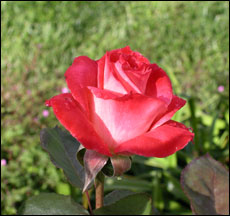
Without Soft Edge Border
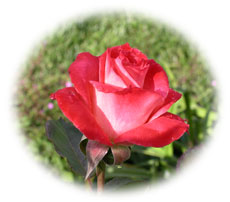
With Soft Edge Border
This tutorial is to help you learn how to give a photo a soft edge. This technique is mainly used for collages, but it can also be used for displays, reports, or just to make a picture more pleasing to the eye. Once you have your photo open in photoshop:
1. Select either the Rectangular Marquee Tool or the Elliptical Marquee Tool. For this example I used the Elliptical Marquee Tool.
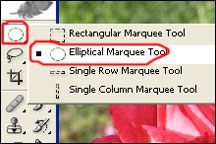
2. Make a good sized selection around what you want in the final product. Allow a little extra room as well to create enough space for the soft edge so you won’t lose some of what you would like to keep.

3. Then choose Feather under the Select Menu. (Select>Feather). For this photo I entered 45 pixels, you may wish to choose a different amount.
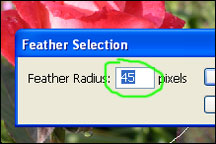
4. Then Copy that selection (Edit>Copy)
5. Make a new document (File>New)
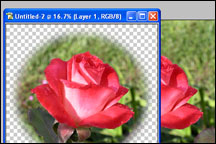
6. Paste the selection into the new document (Edit>Paste).
Like This Article?
Don't Miss The Next One!
Join over 100,000 photographers of all experience levels who receive our free photography tips and articles to stay current:





Great
Thanks , was looking for this for quite some time,very beautifully explained
Thank you for these very clear instructions! Made it easy to blur the edges of the photo. But now I am stumped on how to copy and paste the photo into either word or illustrator. When I do so it shows sharp edges. Any guidance is greatly appreciated.
Hello
I have a CS5 and I do not have an option to ‘refine edges’ in my select menu bar… Is this an elements button- and might be that I don’t have it? How else can I refine edges when I want to make a collage? Thanks
What they said!! :)
Though the tutorial does a perfect job, I’d suggest a simpler way:
The first two steps remain the same as instructed by Richard.
Then right click on the selection and click select inverse.
Then choose feather under the select menu as instructed by Richard.
Now, it’s just a matter of pressing the DELETE key. Simple.
P.S: Please remember. You have to keep the background colour to the one you need on your soft corners which is by default white as in the above image. (I prefer black)
This sounds perfect, except that when I use the rectangular marquee tool and create my selection, feather is not available (it is dimmed.) When I select all and choose Modify, Border, Feather appears, but it doesn’t give the effect you describe. When I paste the object, I merely get a rectangular line, no photo. I am using Photoshop 6.0.
Thanks
Simple and best. Thanks
THANKYOU so much this article was wonderful, I read about 5 before finding this one and yours is by far the best.
Hey! Wow! That was waaaaaayyyyyy too easy. I had been sitting here, watching political crap on MSNBC, and fiddling with Photoshop for more than an hour when I decided to Google the problem… and here was the answer.
Thanks, man.
Karl A. Krogmann
Ditto!
Thank you for making this exercise easy to understand and simple to do. Your instructions are clear, and the images helped tremendously.
I agree with Sarah. Thank you.
I looked all over the internet for simple instructions on how to put a soft edge on a photo and yours hit the mark after a lengthy search. Thank you so much!!
This is very useful!!! :D