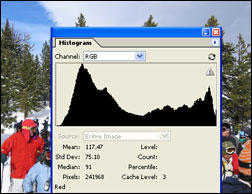
 One of the most useful tools available to digital SLR photographers is the histogram, but it is also one of the least understood. Here we explain what function it provides and how you can use it to check exposure on location.
In basic terms, a histogram is a two-dimensional graph, often resembling a range of mountain peaks, that represents an image’s tonal extent. Whilst, at first glance, histograms might appear quite complex and confusing, they are actually very simple to read. They are an essential aid for digital SLR photographers striving to achieve consistently correct exposures in-camera and are a more accurate method of assessing exposure than looking at images you’ve taken on the LCD monitor. Therefore, if you are not already in the habit of regularly reviewing your image’ histogram, it is time you did so. With the help of this guide, you will soon feel confident assessing histograms, as we cover all the key areas of histograms in an easy to understand, jargon-free language.
What is a histogram? A histogram is a visual representation of an image’s tonal range. The horizontal axis indicates the picture’s extent from pure black to pure white. Pure black is represented by 0 (far left), while pure white is indicated by 255 (far right). The vertical axis illustrates exactly how many pixels have that particular value. Therefore, by simply looking at an image’s histogram, a photographer can tell whether the picture is made up of predominantly light, dark or mid-tones.
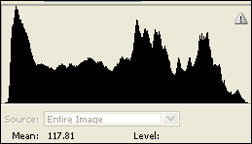 Histograms come in all shapes and sizes. Although their appearance is greatly dictated by the colour and tone of the subject itself, for general scenes, a histogram with a large number of pixels (or a sharp peak) grouped at either edge is an indication of poor exposure. For example, a histogram with a large number of black pixels (grouped to the left) often signifies underexposure. Consequently, subject details will be obscured in the shadow areas. A large number of pixels grouped to the right of the histogram normally indicates an image which is overexposed. The image’s highlights will burn out (or ‘clip’) and this detail is irretrievable. A graph with a narrow peak in the middle and no (or few) black or white pixels indicates an image lacking contrast and so the results may look flat and lifeless.
So what should a histogram look like? This is a tricky one to answer. Despite what some people may say, there is no such thing as the ‘perfect histogram’. It simple tells us how a picture is exposed, allowing photographers to decide whether – and how – to adjust exposure settings. Therefore, a histogram of a light scene will be very different to one with predominantly black tones or one with a mix of both. However, generally speaking, a histogram should show a good spread of tones across the horizontal axis, with the majority of pixels positioned near the middle, (100, mid-point). Normally, it is desirable to avoid peaks to the right-hand side of the graph, as this is usually an indication of ‘burnt out’ (overexposed) highlights, resulting in lost detail. When assessing a histogram, it is important to consider the brightness of the subject itself. For example, a scene or subject boasting a large percentage of light or dark tones – like snow or a silhouette – will naturally have an affect on the overall look of the resulting graph. Therefore, whilst it is possible to make recommendations, it is impossible to generalize about what is and isn’t a good histogram. Whist an even spread of pixels throughout the greyscale is often considered desirable you will also need to use your own discretion.
 How do I check a picture’s histogram? Most digital SLRs allow you to view the histogram on the LCD monitor during playback. To do this, press the playback button to view the image and then cycle through the additional photo info screens until the histogram is displayed. It’s worth making this your default setting, so that you can quickly access the histogram and assess exposure immediately after taking the picture when required.
If the histogram indicates underexposure, apply positive exposure compensation. If pixels are grouped to the right hand side and the image appears overexposed, dial in negative compensation. Using the histogram is a far more reliable method of assessing exposure than looking at images on the LCD screen, particularly when trying to view images outdoors in bright light when the light reflecting from the LCD can prove deceptive. A good basic rule, when interpreting histograms, is to always strive to get a reasonable spread – coverage at least two thirds of the graph and avoiding sharp peaks toward either the far left or right of the graph. Whilst this might be fine in theory, in practice it’s rarely that simple – creative photographers may shoot silhouettes or high-key images, which give histograms with pixels skewed either toward the far left (black) or far right (white). Equally, images of a scene or subject possessing a large percentage of light or dark tones will have a histogram weighted to one edge of the graph. In instance like this, the histogram isn’t indicating an incorrectly exposed image. Instead it is simply representative of the style of image or subject matter.
For more information on digital camera and photography advice, guides, tips, tricks and utilities, be sure to check out DigitalPhotography911.com.
Like This Article?
Don't Miss The Next One!
Join over 100,000 photographers of all experience levels who receive our free photography tips and articles to stay current:






Leave a Reply