Here’s one Lightroom shortcut that’s incredibly useful—and surprisingly easy to overlook.
When you’re deep into editing, it’s easy to get so focused on individual adjustments that you lose perspective on the photograph as a whole.
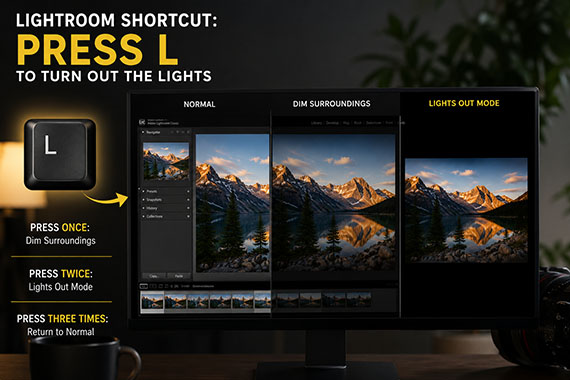
This simple shortcut gives you a quick way to see your image with fresh eyes—especially when you think your edit is finished.
📸 Press “L” to Turn Out the Lights
When you’re editing in Lightroom Classic, press:
L
once to dim everything surrounding your photograph.
Press it again and Lightroom darkens nearly the entire interface, leaving your photograph isolated on the screen.
Press L a third time to return to normal.
Why would you want to do this?
Because all those panels, sliders, thumbnails, buttons, and other photographs surrounding your image can actually influence the way you see your edit.
With Lights Out mode, all of that visual clutter disappears.
You’re left looking at the photograph itself.
I especially like this as a final check before exporting.
Take your hands off the sliders for a moment, press L, and ask yourself:
- Does my eye go where I intended?
- Is the photograph too bright or too dark?
- Are there any distracting areas?
- Do the colors still look natural?
- Did I push the editing a little too far?
Sometimes you’ll immediately notice something you completely missed while concentrating on individual adjustments.
It’s a simple shortcut, but it’s a great reminder that sometimes the best way to improve an edit is to stop editing and simply look at the photograph.
Like This Article?
Don't Miss The Next One!
Join over 100,000 photographers of all experience levels who receive our free photography tips and articles to stay current:




Leave a Reply