You don’t need expensive editing software or advanced photography skills to dramatically improve your smartphone photos. Sometimes, just three small adjustments can turn an ordinary snapshot into something much more polished.
And the best part? You can do it in about 10 seconds using the editing tools already on your phone.
Relevant: only a little while left for the Smartphone Photography Guide 🍁 Fall Capture Sale
The Three-Slider Trick
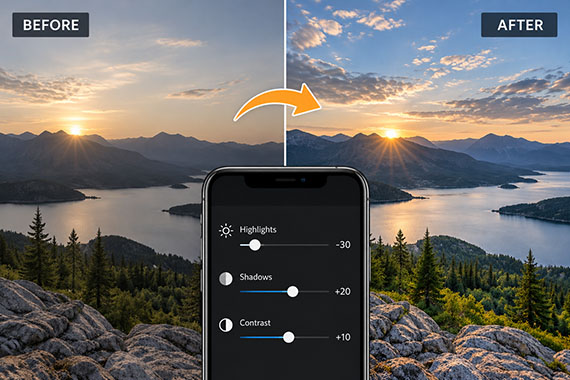
The secret is to adjust Highlights, Shadows, and Contrast in that order. These three controls work together to bring out details and give your photos a more balanced, professional appearance.
Here’s how to do it:
Step 1: Lower the Highlights (-20 to -40)
Open a photo in your phone’s editing app and find the Highlights slider. Move it to the left.
This reduces the brightness of the lightest areas in your image, helping reveal detail in bright skies, white clouds, and sunlit surfaces that might otherwise look washed out.
It’s especially useful for travel photos and outdoor scenes photographed in strong sunlight.
Step 2: Raise the Shadows (+15 to +35)
Next, find the Shadows slider and move it slightly to the right.
This brightens darker areas without increasing the brightness of the entire image. Details hidden beneath trees, inside buildings, or on people’s faces can become more visible.
Be careful not to push this too far. Excessive shadow recovery can make photos look flat or reveal unwanted noise.
Step 3: Add a Little Contrast (+5 to +15)
Finally, increase Contrast just slightly.
After lowering highlights and raising shadows, your photo may look a little flat. Adding a touch of contrast restores depth and gives the image a more finished appearance.
The key is subtlety. You want your photo to look naturally better, not obviously edited.
Why This Works So Well
Smartphone cameras are remarkably capable, but automatic processing doesn’t always produce the ideal balance between bright and dark areas.
A sunny landscape, for example, might have a beautiful sky but dark foreground details. Brightening the entire photo could wash out the sky even further.
By adjusting highlights and shadows separately, you gain more control over the image’s tonal range. A small contrast adjustment then helps maintain a sense of depth.
These changes won’t recover details that were completely clipped when the photo was taken, but they can make a noticeable difference in many everyday images.
One Extra Trick: Compare Before and After
Before saving, press and hold your photo in the editing app if it supports a before-and-after preview.
Look closely at the difference. Are the clouds more detailed? Can you see more in the shadows? Does the image still look natural?
If the edit feels too strong, reduce the adjustments slightly.
Remember, the goal isn’t to make your photo look edited. It’s to make the original scene look its best.
Try It on Your Next Photo
The next time you take a landscape, travel photo, or outdoor portrait, spend just 10 seconds experimenting with these three sliders.
Start with Highlights -30, Shadows +20, and Contrast +10, then adjust to taste. These are starting points, not universal settings, and some photos may need very little adjustment.
You might be surprised how much improvement you can achieve without filters, presets, or complicated editing techniques.
For Further Training:
The Fall Capture Sale 🍁 on the Smartphone Photography Guide is wrapping up soon, and it’s a great chance to finally unlock what your phone camera can really do.
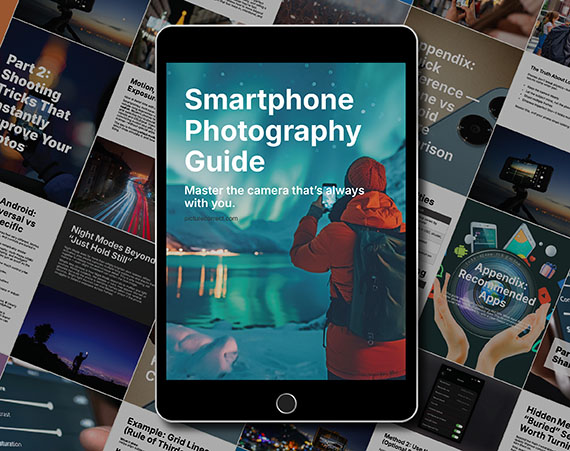
The guide walks through real, usable techniques—manual controls, motion blur, low-light shooting, and creative effects—so you’re not just relying on auto mode and luck. If this post helped, the guide goes much deeper.
Deal ending soon: Smartphone Photography Guide 🍁 Fall Capture Sale
Like This Article?
Don't Miss The Next One!
Join over 100,000 photographers of all experience levels who receive our free photography tips and articles to stay current:





Leave a Reply