Every photo you take with your phone quietly records a trail of information most people never look at.
It’s not visible in the image itself. It doesn’t change colors or sharpness. And it’s rarely mentioned in beginner photography guides.
But this hidden photo data can explain why a photo worked—or why it didn’t—and help you make better decisions the next time you shoot.
Relevant note: only a few days left for the Smartphone Photo Guide New Year Offer 🎉
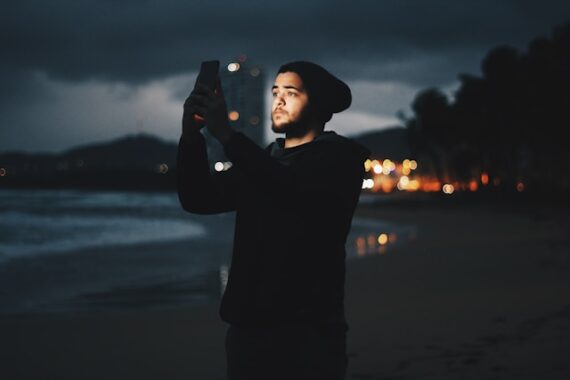
What Is “Hidden Photo Data”?
Whenever you take a photo, your smartphone records technical details behind the scenes. This is called photo metadata.
It can include:
- Exposure time (shutter speed)
- ISO (light sensitivity)
- Lens used
- HDR or Night Mode usage
- Time, location, and orientation
Most phones hide this information by default, but it’s easy to access once you know where to look.
Where to View Photo Metadata on Your Phone
On iPhone (Photos App)
- Open the Photos app
- Tap any photo
- Swipe up on the image or tap the ⓘ Info button
You’ll see details such as:
- Exposure time and ISO
- Lens used
- HDR or Night Mode status
- Date, time, and location
You don’t need any extra apps—this information is built into iOS.
On Android (Google Photos or Gallery App)
Steps vary slightly by manufacturer, but the process is similar:
- Open Google Photos (or your phone’s Gallery app)
- Tap a photo
- Swipe up or tap the ⓘ Info / Details icon
You’ll typically see:
- Shutter speed and ISO
- Lens or focal length
- File size and resolution
- Date, time, and location
Some Android phones even show whether AI enhancements or HDR were applied.
Exposure Time: The Silent Reason for Blur (or Sharpness)
One of the most revealing pieces of metadata is shutter speed.
If a photo looks blurry, it’s often because the shutter stayed open longer than your hands could hold steady—even if focus looked fine.
By reviewing shutter speed, you’ll learn:
- When blur comes from movement, not focus
- How slow your phone goes before results soften
- When Night Mode quietly extends exposure time
This alone can dramatically improve your hit rate in low light.
ISO: When Your Phone Is Struggling for Light
ISO shows how hard your phone had to work to brighten the scene.
High ISO values often explain:
- Grainy textures
- Soft details
- Washed-out colors
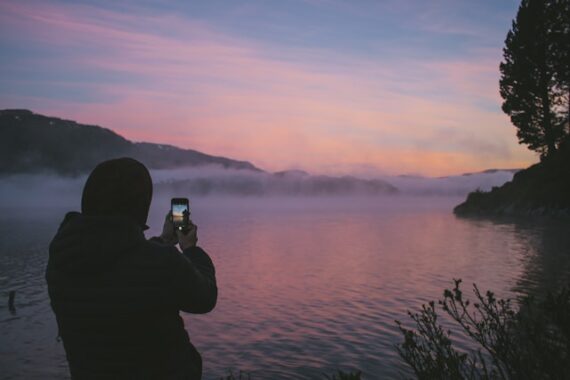
If you see high ISO repeatedly indoors or at night, it’s a sign to:
- Move closer to available light
- Stabilize your phone (or tripod)
- Adjust composition rather than relying on software fixes
HDR and Night Mode You Didn’t Know Were On
Phones automatically apply computational modes without asking.
Metadata reveals:
- Whether HDR was used
- If Night Mode activated (even briefly)
- When multiple frames were blended
This helps explain why some images look flatter, cleaner, or occasionally “smeared” when subjects move.
Once you see when these modes activate, you can predict when they’ll help—and when they’ll get in the way.
Which Lens Did Your Phone Actually Use?
Modern phones choose lenses automatically—and not always the one you expect.
Metadata can show:
- Ultra-wide vs wide vs telephoto
- When digital zoom replaced optical zoom
- Why some photos look softer despite good lighting
Understanding this helps you choose focal lengths your phone handles best.
How to Use Metadata Without Overthinking It
You don’t need to analyze every photo.
Instead:
- Check metadata on photos you love
- Compare it to similar shots that didn’t work
- Look for patterns, not rules
Your phone already makes exposure decisions for you. Metadata simply lets you see those decisions—and learn from them.
The Takeaway
Hidden photo data won’t magically fix bad photos.
But it will show you why things went right—or wrong—so you can improve faster without guessing.
Sometimes the biggest photography upgrade isn’t a new phone.
It’s understanding the one you already have.
For Further Training:
The New Year Flash Sale 🎉 on the Smartphone Photography Guide is wrapping up soon, and it’s a great chance to finally unlock what your phone camera can really do.
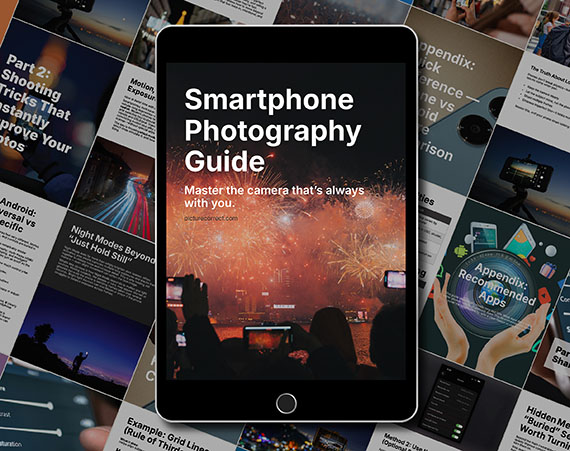
The guide walks through real, usable techniques—manual controls, motion blur, low-light shooting, and creative effects—so you’re not just relying on auto mode and luck. If this post helped, the guide goes much deeper.
Found here: Smartphone Photography Guide New Year 🥳 Flash Sale
Like This Article?
Don't Miss The Next One!
Join over 100,000 photographers of all experience levels who receive our free photography tips and articles to stay current:




Leave a Reply