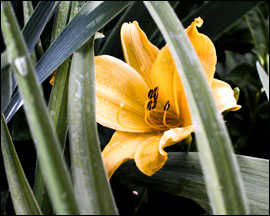
Before Changes
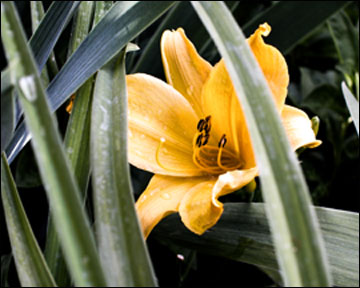
After Changes
This tutorial is to help you learn how to blow-up or enlarge a picture. You might wish to do this to make a bigger print or for numerous other reasons. Photoshop does a pretty good job but you will still lose a bit of sharpness depending on how much larger you make the photo. Ok, once you have your photo open in photoshop:
1. Click on the Image Menu and then click on Image Size,
(Image>Image Size)
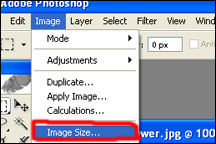
2. In the Image Size dialogue box make sure the Constrain Proportions Option is checked.
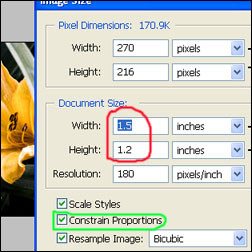
3. Then simply adjust the photo size with by the width or the height by entering a larger number. After you enter a new size press OK. (You can also adjust the size by adjusting the pixels or the resolution but the easiest way is by the inches).
Like This Article?
Don't Miss The Next One!
Join over 100,000 photographers of all experience levels who receive our free photography tips and articles to stay current:
You constantly provide such interesting photography information; I appreciate it and like reading it!
I can see how much hard work you’ve put on into this!
Very technical and effective content for the photoshop user. Really thankful to you for this nice job.
How do I change my images for minimum 6500px or 72dpi
I have a problem of upload images because of the size, some sites need a minimum of 6500px or 72PI.
How can I change my image to meet these requirements?
/Users/anthonygertamorretta/Desktop/Screen Shot 2020-01-05 at 2.58.47 PM.png
you always give such cool information about photography, I am grateful to you and read with pleasure!
I simply just duplicate the layer and press Ctrl + T to transform the image as needed.
I need to change the size of a photo that’s not the original to 1000KB so that I’m able to reproduce it onto canvas. How many pixels would I need to change that to in order for it to be 1000KB
Thank you for the information. The problem I have is when I upload an image that has been enlarged it is still cutting off a portion of my picture. Can you tell me how to remedy this. Thank you.
i like your teaching, I’m just trying and get best result
thanks a lot.
Regards
ASIF ALI
This is what I was looking for. I didn’t know there is an image size from the Image drop down menu.Thanks a lot.
Or you could simple press Ctrl + T (for free transform) and then whilst holding the Shift button, drag the bottom right hand corner out until you reach the desired size.
Bro that does not changes the image resolution.
thanks bro
thanks peter