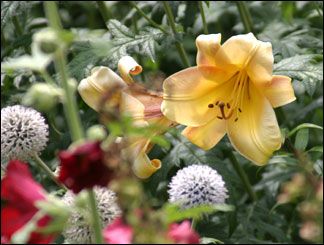
Before Changes
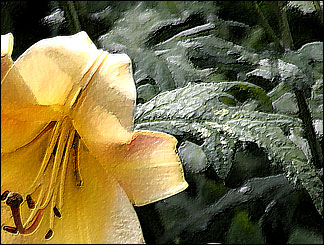
After Changes
This tutorial is to help you learn how to create a realistic painting effect. The filters in photoshop do a pretty good job, but this technique just adds a little to it. Ok, once you have your picture open in photoshop:
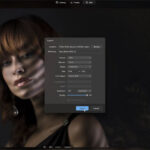
1. Apply a Watercolor Filter to the picture, (Filter>Artistic>Watercolor). The amounts shown on the left looked the best for this picture.

2. Duplicate that layer, (Layer>Duplicate Layer)
3. On the new copied layer you just made in step 2 apply an Emboss Filter, (Filter>Stylize>Emboss). Use a Height of about 2 pixels and an Amount around 150 – 200%.

4. Change the Blending Mode for the Embossed Layer to Linear Light.

All Done!
Like This Article?
Don't Miss The Next One!
Join over 100,000 photographers of all experience levels who receive our free photography tips and articles to stay current:



Leave a Reply