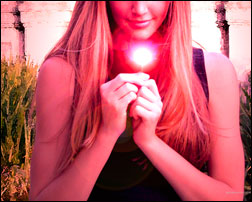
Before Changes
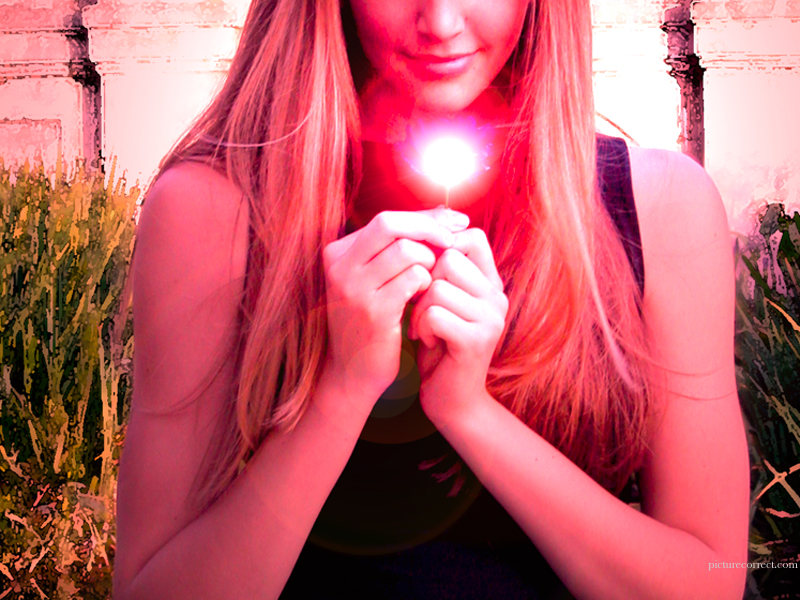
After Changes
This tutorial will show you how to create a magic effect or glowing flame effect that can be added to virtually any digital photo.
1. Add brightness and lots of contrast.
(Image>Adjustments>Brightness/ Contrast)
Brightness: +11
Contrast: +20
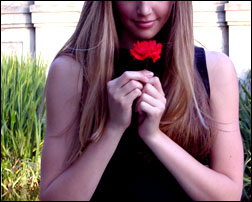
2. Isolate the girl from the background. If you need more help with this step please refer to our tutorial on Separating a Subject from it’s Background.
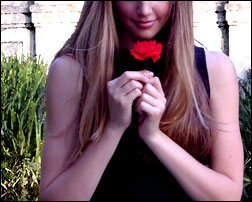
3. Apply a Watercolor Filter to a new layer with only the background on it (Filter>Artistic>Watercolor). Then merge the layers together.
4. Render a 50-300mm Zoom Lens Flare with an intensity of about 129. Make sure its over the Rose. (Filter>Render>Lens Flare)
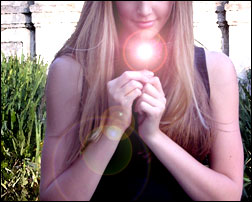
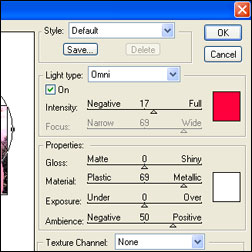
5. Render Lighting Effects with the settings like the picture on the left. (Filter>Render>Lighting Effects)
Light Type: Omni
Color: Between Pink and Red
Intensity: 17
Material: 69
Ambience: 50
Magic Effect
Like This Article?
Don't Miss The Next One!
Join over 100,000 photographers of all experience levels who receive our free photography tips and articles to stay current:


Leave a Reply