In this tutorial, we are going to combine these two photos:
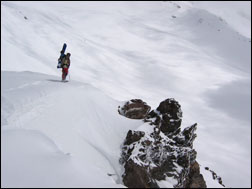
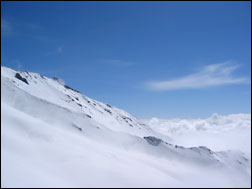
And create this photo:
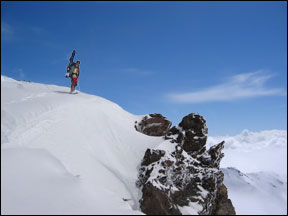
Introduction: This tutorial is to help you learn how to change the background of a photo to something more interesting if you choose. There are many ways of getting this done, but this technique is probably one of the easiest and most effective. Ok, so once you open two similar photos (preferably the same size) that you would like to combine in photoshop:
1. Adjust the Levels and Brightness and Contrast of both pictures so they are just about as similarly adjusted as possible. If you need more explanation of this visit our “Photo Touchups Tutorial.”
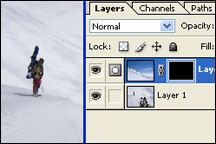
2. Then working with the photo that has the background that you want to use, Select the whole thing (Select>All), Copy the whole thing (Edit>Copy), and then working with the photo that has the foreground that you want to use, Paste the previous photo onto a new layer (Edit>Paste). Your layers menu for the for your photo should now look similar to the picture to the left. With the background photo on top of the foreground photo.
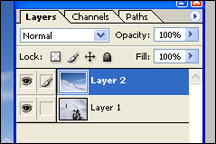
3. Now, add a Layer Mask to the upper layer that Hides All, (Layer>Add Layer Mask>Hide All). Your Layers menu should now look like similar to the picture below.
4. Click on the Brush Tool,
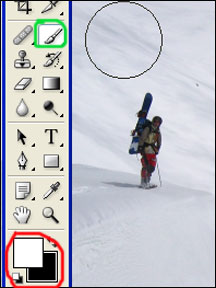
5. (make sure the colors you are working with are black and white).
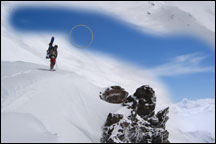
6. Then (with the mask on the upper layer selected) simply brush where you want the new background to show through. You will probably have to change brush sizes often for the more intricate places.
Like This Article?
Don't Miss The Next One!
Join over 100,000 photographers of all experience levels who receive our free photography tips and articles to stay current:






Which software have you used?
Great tutorial, helps me with editing my photos taken with my quadcopter. Thanks!
Lovey!!!
great job you guyz actually deserve the title “professionals”
Will any version of photoshop do this, or is it limited to a certain edition? Thanks.
thank you
Hahahaaha tailaso awesome
This is really helpful… Thanks
Yes it is a great tutorial
nice tutorial, very clear
The best tutorial so far that answers my question.
i loved it.:)
thank you SOOO much! so helpful and pretty simple to do.
Great! tutorial, problem solved within few seconds :)
thank you SOOO much! so helpful and pretty simple to do.
Hi, How to change the photo background to plain white colour?
Very simple to understand, I wanna say a big thank you….
Loved the lesson.
Keep providing these sort of basic things for us….
Simple and straight forward, easy to understand, easy to follow
Sweet ! Thank you so much for the tutorial! Simple and easy like I need! hehe
Man…. YOU Are the Best! Solved my problem within a moment! Thanks a lot!!
The Best Tutorial ever! Highly recommended for beginners like me. Easy & Simple!
LOVE IT! Thank you.
solved my problem in a minute
the best tutorial found so far
Great tutorial :) very easy to understand and use.
Excellent, clear tutorial! Thank you very much!